Showing posts with label tutorial. Show all posts
Showing posts with label tutorial. Show all posts
26 January 2016
Learning Angular quickly
If you need to get up-to-speed on AngularJS quickly, nothing beats the collection compiled by the always great Aaron Marisi: Learning Angular Quickly. I'm just getting into the podcasts he lists, and recommend his resources.


Great beginning Angular tutorial
If you're starting with AngularJS on Visual Studio, look no further than Aaron Marisi's Angular First blog. He explains the basics and some more advanced subjects clearly and simply. Plus he follows best practices and provides the code for all his examples. Lots to learn here!
11 July 2011
18 November 2010
04 November 2010
24 September 2010
17 September 2010
08 September 2010
Get Virtual PC to see your localhost on Windows 7
I use Virtual PC to test on IE7 and need it to see the host machine's localhost (IP address). This is disabled by default via the Win 7 firewall. You can re-enable it by following these steps:
- On the host machine, open the Control Panel and choose the Windows Firewall.
- In the firewall, go to "Allow a program or feature through Windows Firewall."
- In the "Allowed programs and features" list, scroll down to "World Wide Web Services (HTTP) and check the box under "Domain."
- Click OK
02 September 2010
27 August 2010
Multiple $(document).ready()
A page can contain multiple jQuery calls to the $(document).ready() function. This comes in handy if you're generating code at run-time or mixing static JavaScript with code generated via PHP or other server-side language. In addition, you can abbreviate the call to:
$(function() {
// do something on document ready
});
How to find element based on a string
Say you're looking for a string in the HTML and wish to get the parent element(s) that contains it. This Stackoverflow.com thread covers the technique, using a wildcard ("*") for all page elements. You can narrow it down by using a specific element type ("div" for example) instead of the wildcard.
26 August 2010
Add Quick Launch bar to Windows 7
The Quick Launch feature can be recreated in Windows 7, though why it's hidden is puzzling. This article provides step-by-step instructions on how to do this and even position it on the left, next to the start button.
03 August 2010
How to install Joomla on Windows
For development purposes, I needed Joomla installed on my Windows XP system. However, Joomla has some infrastructure requirements often not found on Windows boxes. Here are some steps on how to successfully install Joomla on your PC:
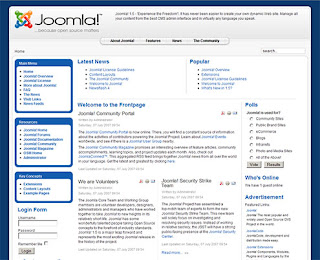
Additional resources on installing Joomla with XAMPP on Windows and other platforms can be found on the Joomla docs site.
- Download the XAMPP for Windows package. I downloaded the EXE and installed it at the root C: in the XAMPP folder.
- If you also have IIS running on your system, after the installation, change the default port used by Apache.
- The XAMPP installation will automatically ask you if you want to launch its control panel. If it's not already running, go to Start > XAMPP for Windows > XAMPP Control Panel.
- Click to start the Apache and MySql services (if they're not already running). When they successfully start, you'll see a green indicator saying "Running" next to each service. [Note: If the services take too long to start, it's more than likely because port 80 is being used by IIS; follow Step 2 above to change the Apache port to something else and try to start the services again.]

- Download the latest version of Joomla.
- Create a folder named joomla under C:\xampp\htdocs\
- Unzip the contents of the Joomla ZIP file into this new folder.
- Open your browser and navigate to http://localhost/ or, if you changed the Apache port, to http://localhost:xx/, where xx is the port number you assigned to Apache in Step 2.
- Click the phpMyAdmin link and go to "Privileges" on the MySQL database.
- Choose "Add a new User" and give it a name and password you can remember.
- Under "Global privileges" for this user, click "Check All" to grant all rights to this user.
- Click Go to create the user.
- Go to the Databases tab and create a database for Joomla (could be called joomla).
- Open your browser and navigate to http://localhost/joomla/ or, if you changed the Apache port, to http://localhost:xx/joomla/, where xx is the port number you assigned to Apache.
- Follow the wizard until you get to the database screen. Here, enter the information for the database and user you just created. For the host, use localhost. Important: Do not enter the port number after the host name, such as localhost:xx because this will not work and it won't generate an error; enter only the word localhost into the Host Name field.
- Upon successful completion, Joomla asks you to delete the installation folder. Go ahead and do that.
- To see the Joomla home page, reload http://localhost/joomla/ or, if you changed the Apache port, http://localhost:xx/joomla/, where xx is the port number you assigned to Apache.


Additional resources on installing Joomla with XAMPP on Windows and other platforms can be found on the Joomla docs site.
29 July 2010
Subscribe to:
Posts (Atom)